

区块绑定 API 是区块编辑器中的一个强大工具,可让您将任何数据源连接到区块的属性。
该 API 最初在 WordPress 6.5 中引入,在其初始实现中,使 WordPress 用户能够在文章和页面中显示自定义字段值。
区块绑定 API 是其他强大 WordPress 功能的基础。例如包括 WordPress 6.6 中引入的同步模式覆盖功能,以及在 WordPress 6.9 中引入的文章日期区块变体。
那么,究竟什么是区块绑定 API?它的用途是什么?我们将提供一个简单的介绍和一个实际示例,展示如何在 Gutenberg 区块和外部数据源之间创建绑定。
让我们开始吧。
区块绑定 API:基本概念
正如我们上面提到的,区块绑定 API 允许您在数据源和区块的属性之间创建绑定。
如果您不熟悉区块属性,请导航到 GitHub 上 Gutenberg 项目的区块库的 src 目录,找到段落区块,然后打开 block.json 文件。attributes 属性提供了段落区块的属性列表。
"attributes": {
	"content": {
		"type": "rich-text",
		"source": "rich-text",
		"selector": "p",
		"role": "content"
	},
	"dropCap": {
		"type": "boolean",
		"default": false
	},
	"placeholder": {
		"type": "string"
	},
	"direction": {
		"type": "string",
		"enum": [ "ltr", "rtl" ]
	}
},
以下区块支持区块绑定 API(截至 WordPress 6.9),因此可以链接到您的自定义字段:
| 支持的区块 | 属性 | | — | — | | 段落 | content | | 标题 | content | | 图片 | id, url, alt, title, caption | | 按钮 | text, url, linkTarget, rel |
要将您的自定义字段连接到 Gutenberg 区块,您必须首先注册它们。以下代码通过 WordPress 插件或主题的 functions.php 文件 注册一个自定义字段:
add_action( 'init', function() {
	register_post_meta( 'your-post-type', 'myplugin_meta_key', [
		'show_in_rest'  => true,
		'single'        => true,
		'type'          => 'string',
		'description'   => __( 'City name', 'textdomain' ),
		'auth_callback' => 'is_user_logged_in',
	] );
} );
register_post_meta 接受一个属性数组,用于定义自定义字段的特性,文档提供了完整的属性列表。要让自定义字段可用于区块绑定 API,您必须将 show_in_rest 设置为 true。截至 WordPress 6.9,string 是唯一支持的类型。
要查看区块绑定 API 与自定义字段的实际应用,请创建一个新的 WordPress 插件,并使用上面显示的代码注册一个元字段。
<?php
/**
 * Plugin Name: Block Bindings example
 * Description: Example plugin that uses the Block Bindings API.
 * Version: 1.0.0
 * Author: Your Name
 * License: GPL2 or later
 * Text Domain: block-bindings-example
 */

if ( ! defined( 'ABSPATH' ) ) {
	exit;
}

add_action( 'init', function() {
	register_post_meta( '', 'block_bindings_image_url', [
		'show_in_rest'  => true,
		'single'	    => true,
		'type'		    => 'string',
		'description'   => __( 'City name', 'block-bindings-example' ),
		'auth_callback' => 'is_user_logged_in',
	] );
} );
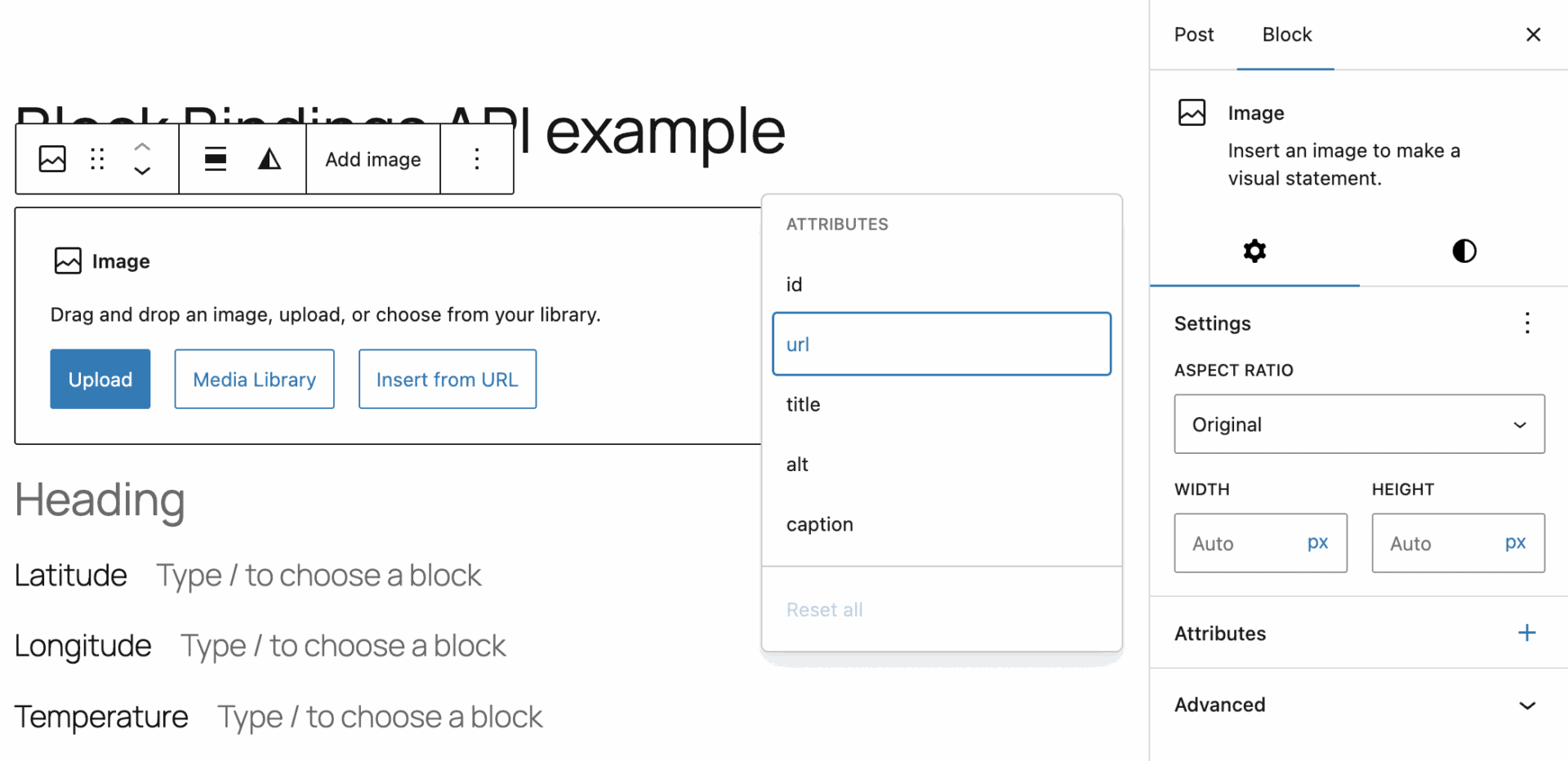
在 WordPress 仪表板中激活该插件。然后,转到文章屏幕并创建新文章。当选择支持的块时,块设置侧边栏中的属性面板将显示可以绑定到已注册自定义字段的属性列表。
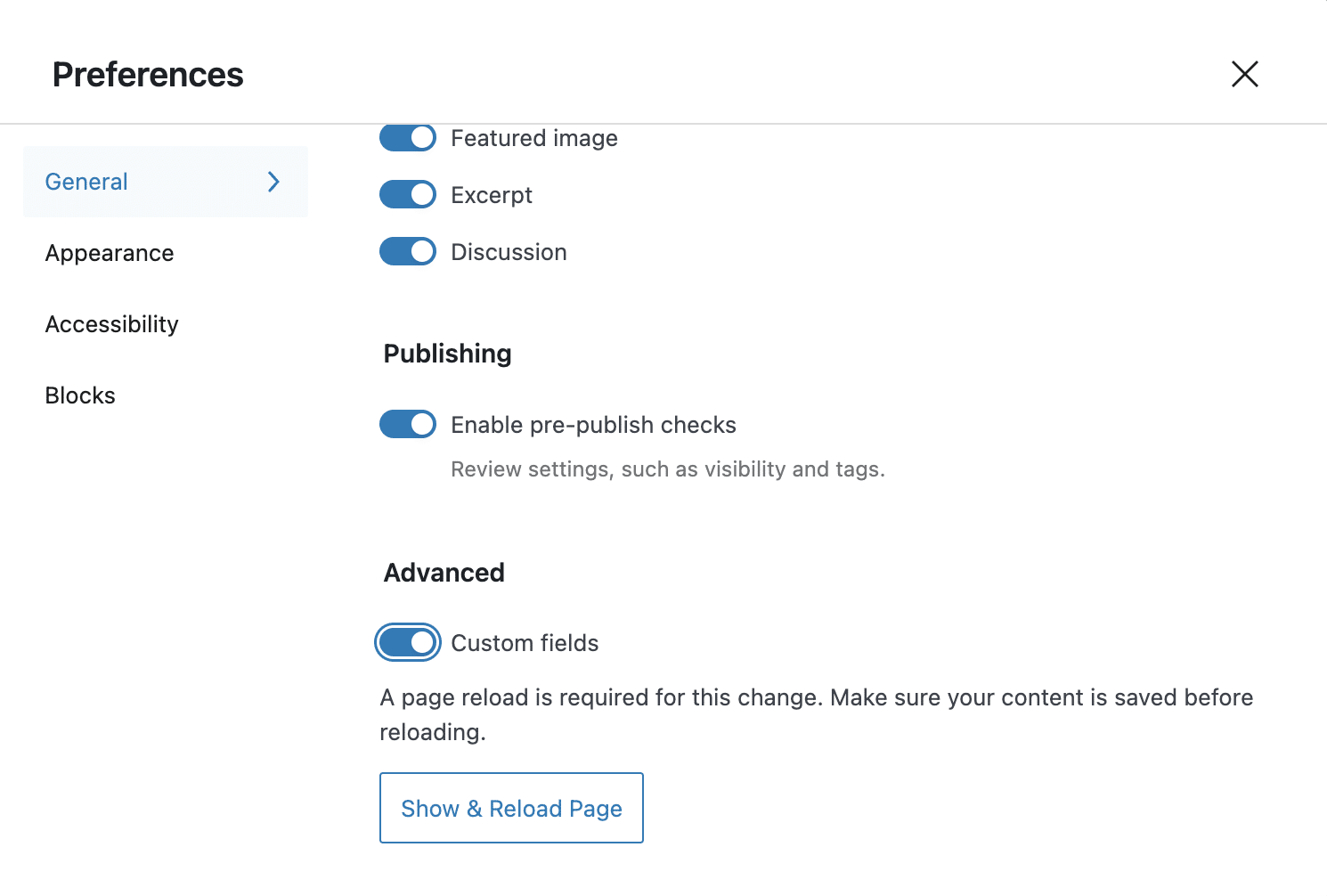
打开右上角的选项菜单,选择首选项。在常规标签中,找到高级部分并启用自定义字段。保存更改,等待页面重新加载,然后返回编辑器。
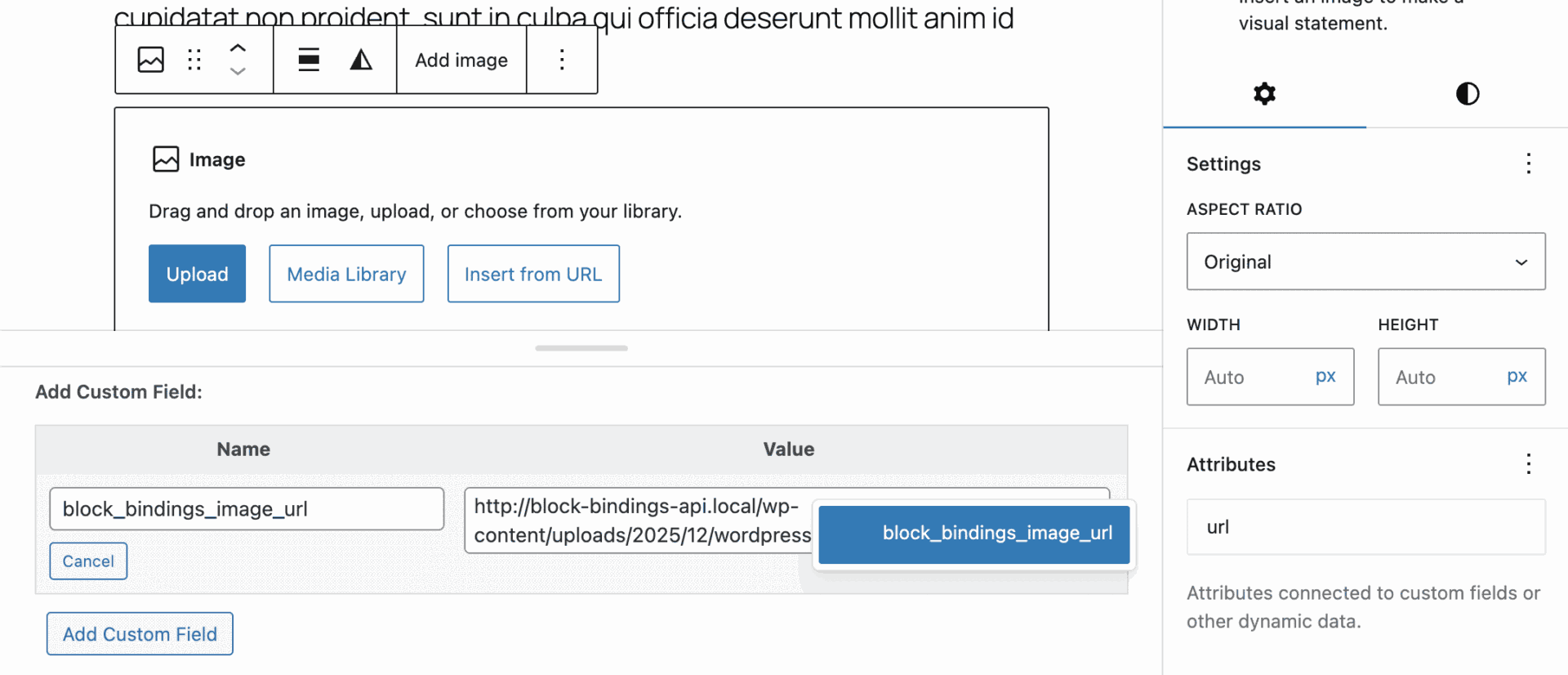
下一步是插入一个图片块。选中该块后,点击属性面板中的 + 图标并选择 url 属性。然后属性面板将显示可用的元字段列表。再次选择 url。现在,你将看到当前文章类型可用的元字段列表。
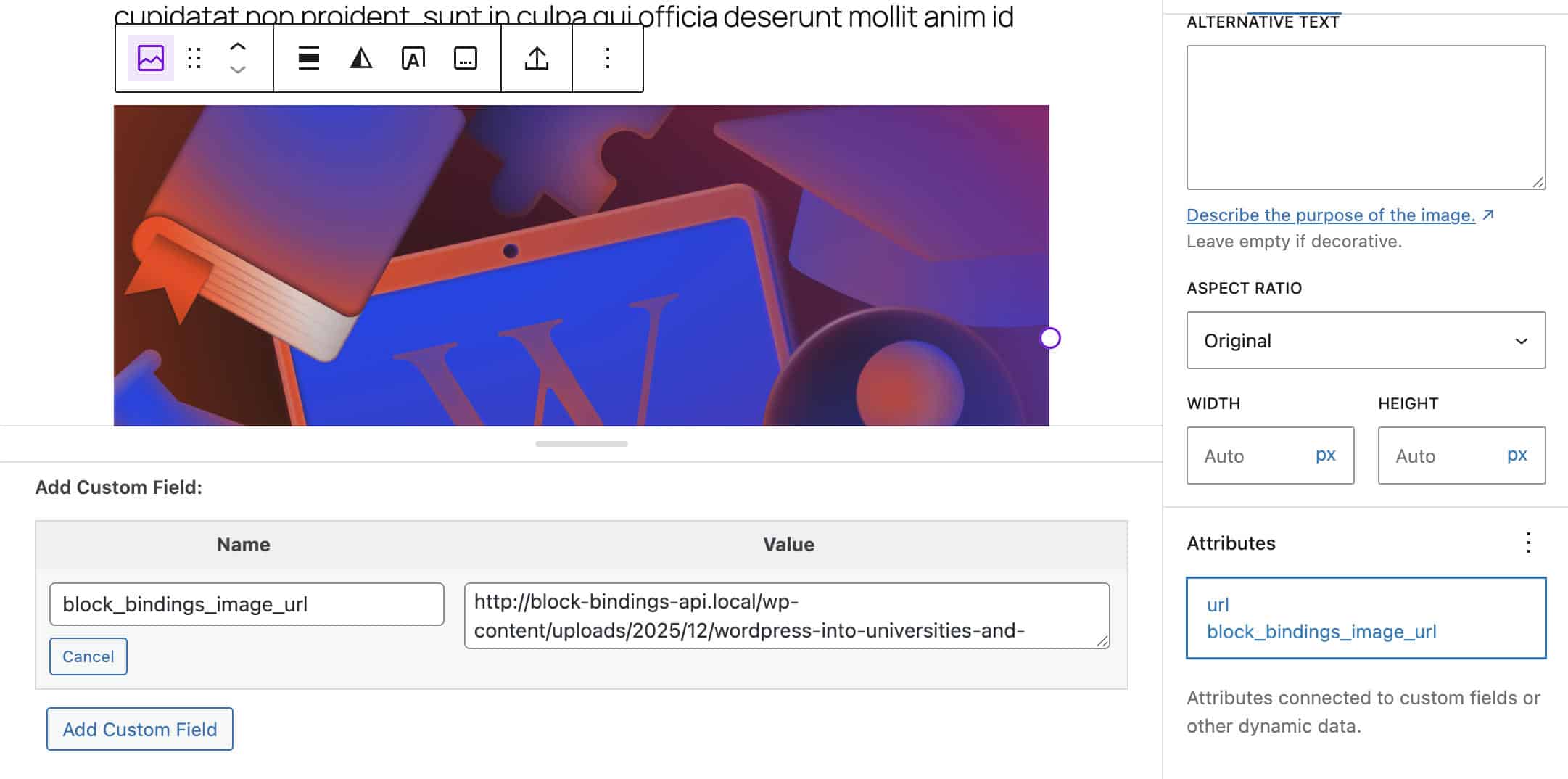
选择你的元字段并保存文章。你现在应该在编辑器和前端都能看到你的图片。
从 WordPress 6.7 版本开始,你可以使用标签属性在编辑器界面中显示文本。以下代码块显示了一个示例:
add_action( 'init', function() {
	register_post_meta( '', 'block_bindings_image_url', [
		'show_in_rest'  => true,
		'single'        => true,
		'type'          => 'string,
		'description'   => __( 'City image', 'block-bindings-example' ),
		'label'         => __('Image URL'),
		'auth_callback' => 'is_user_logged_in',
	] );
} );
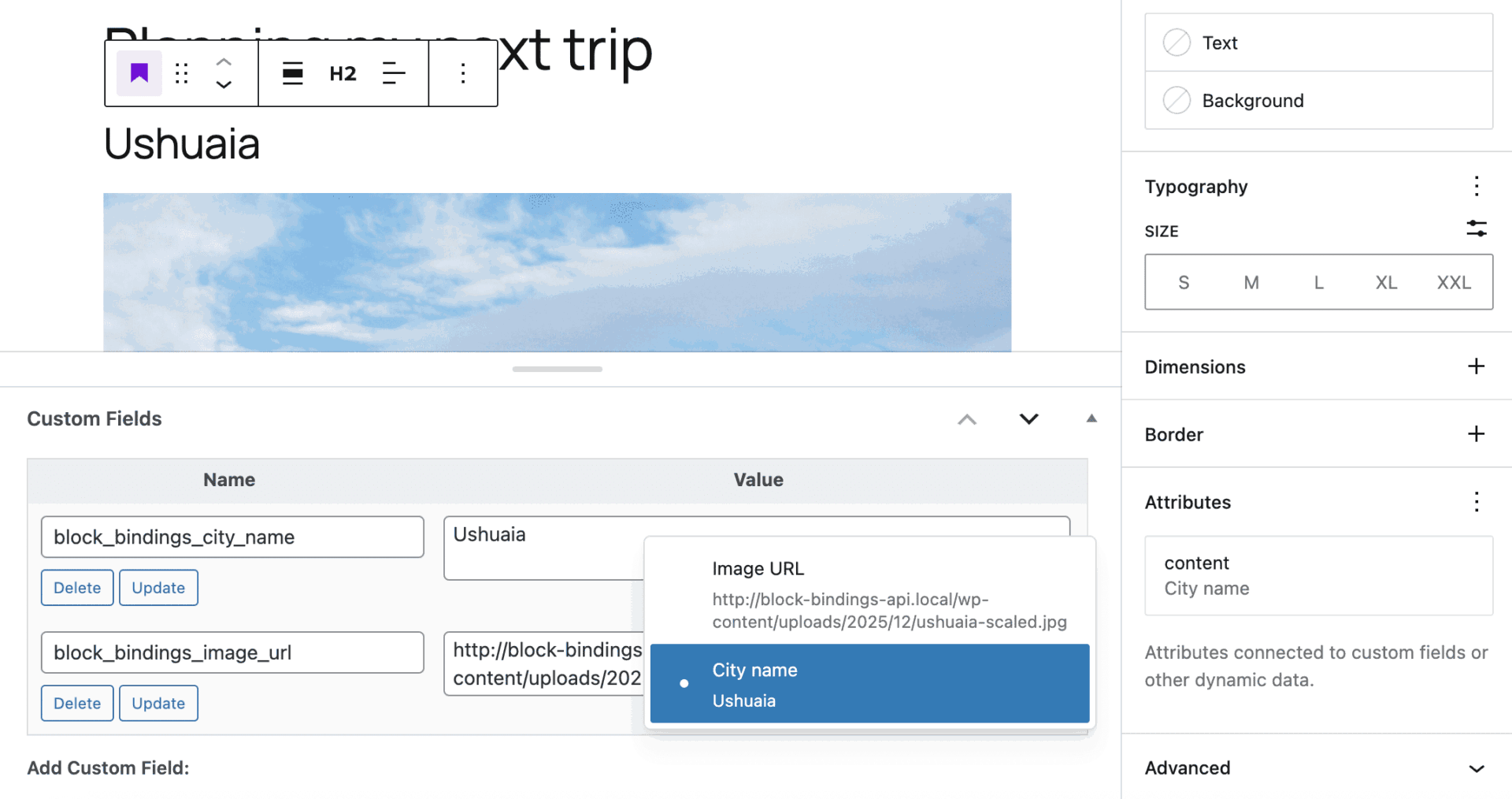
打开代码编辑器,你可以在图片块分隔符内看到一个 JSON 对象。metadata.bindings.url 属性显示图片块的 url 链接到了一个元数据字段。
<!-- wp:image {
	"metadata":{
		"bindings":{
			"url":{
				"source":"core/post-meta",
				"args":{
					"key":"block_bindings_image_url"
				}
			}
		}
	}
} -->
<figure><img alt="/></figure>
<!-- /wp:image -->
source 属性指定块绑定的数据源。args.key 属性建立与你的元字段的引用。
块绑定 API 最有趣的方面是它能够注册自定义数据源,这为开发者打开了一些令人兴奋的新可能性。接下来,我们将探索如何将第三方服务的数据与块绑定 API 结合使用。
如何注册自定义块绑定数据源:一个真实示例
一旦你熟悉了块绑定 API 的基本概念,我们就可以继续探讨它对开发者来说更高级和有趣的方面。
如前所述,块绑定 API 允许你注册自定义数据源。这使你能够从远程来源检索数据和/或处理原始数据,以生成可以自动插入到内容中的有用信息。
在本节中,您将通过一个实际示例来学习如何最大限度地发挥 Block Bindings 的潜力,您可以将此示例作为开发自己的自定义应用程序的基础。
假设您想从外部来源检索数据并将其显示在您的文章、页面或自定义文章类型中。例如,您可以通过发送带有城市经纬度的请求来查询天气服务 API,以获取实时天气数据,然后可以将其显示在您的网站上。
借助 Block Bindings API,您可以显示当前温度或为读者提供未来几天的天气预报。您还可以根据天气条件以编程方式更改页面上一个或多个图像的 url 属性。
要将此功能添加到您的 WordPress 网站,您需要创建一个插件。请按照以下步骤操作:
步骤 1:创建基础插件
第一步是创建插件文件。导航到 WordPress 安装目录的 wp-content/plugins 目录,创建一个名为 block-bindings-example 的新文件夹。在此文件夹中,添加以下文件:
/wp-content/plugins/
└── /block-bindings-example/
	├── block-bindings-example.php
	└── /includes/
		├── binding-sources.php
		├── meta-fields.php
		└── weather-api.php
在您喜爱的代码编辑器中打开 block-bindings-example.php 文件,并添加以下代码:
<?php
/**
 * Plugin Name: Block Bindings Example
 * Description: Use WordPress Block Bindings API (6.5+) to dynamically bind weather data from Open-Meteo API to Gutenberg blocks using custom post meta and a custom binding source.
 * Version: 1.0.0
 * Author: Your Name
 * License: GPL2 or later
 * Text Domain: block-bindings-example
 */

if ( ! defined( 'ABSPATH' ) ) {
	exit; // Exit if accessed directly
}

/**
 * Cache duration for weather data: 30 minutes
 * This reduces API calls and improves performance
 */
define( 'BB_WEATHER_CACHE_TIME', HOUR_IN_SECONDS / 2 );

require_once plugin_dir_path( __FILE__ ) . 'includes/meta-fields.php';
require_once plugin_dir_path( __FILE__ ) . 'includes/binding-sources.php';
require_once plugin_dir_path( __FILE__ ) . 'includes/weather-api.php';

/**
 * Setup function
 */
function bb_init_setup() {
	bb_register_post_meta();
	bb_register_binding_sources();
}
add_action( 'init', 'bb_init_setup' );
以下是这段代码的作用:
- 常量
BB_WEATHER_CACHE_TIME决定天气数据的缓存时间。这可以减少 API 调用,提高页面性能,并降低服务成本。 require_once表达式用于包含必要的脚本,以注册元字段、注册绑定源以及从 API 检索数据。- 设置函数调用两个函数来注册文章元字段和自定义绑定源。
步骤 2:注册文章元字段
下一步是注册您用例所需元字段。在 includes 文件夹中打开 meta-fields.php 文件,并添加以下代码:
<?php
/**
 * Registers custom post meta fields so they appear in the REST API and Block Bindings editor panel
 */
function bb_register_post_meta() {

	if ( ! function_exists( 'register_post_meta' ) ) {
		return;
	}

	register_post_meta( 'post', 'block_bindings_city_name', [
		'show_in_rest'  => true,
		'single'        => true,
		'type'          => 'string',
		'description'   => __( 'Add city name', 'block-bindings-example' ),
		'label'         => __( 'City name', 'block-bindings-example' ),
		'auth_callback' => 'is_user_logged_in',
	] );

	register_post_meta( 'post', 'block_bindings_image_url', [
		'show_in_rest'  => true,
		'single'        => true,
		'type'          => 'string',
		'description'   => __( 'Add city image URL', 'block-bindings-example' ),
		'label'         => __( 'City image URL', 'block-bindings-example' ),
		'auth_callback' => 'is_user_logged_in',
	] );
register_post_meta( 'post', 'block_bindings_city_lat', [ 'show_in_rest' => true, 'single' => true, 'type' => 'string', 'description' => __( '添加城市纬度', 'block-bindings-example' ), 'label' => __( '纬度', 'block-bindings-example' ), 'auth_callback' => 'is_user_logged_in', ] );
register_post_meta( 'post', 'block_bindings_city_lng', [
	'show_in_rest'  => true,
	'single'        => true,
	'type'          => 'string',
	'description'   => __( '添加城市经度', 'block-bindings-example' ),
	'label'         => __( '经度', 'block-bindings-example' ),
	'auth_callback' => 'is_user_logged_in',
] );
}
`register_post_meta` 函数用于注册文章使用的元数据键。请注意,要使通过这种方式注册的元数据字段能够与 Block Bindings API 一起使用,必须将 `show_in_rest` 设置为 `true`,并将 `type` 设置为 `string`。有关更多信息,请参阅[文档](https://developer.wordpress.org/reference/functions/register_post_meta/)。

### 第 3 步:注册 Block Bindings 来源

是时候注册您的绑定来源了。打开 `binding-sources.php` 文件并添加以下代码:
Placeholder
“` 使用此方法,绑定源的名称将在编辑器中显示为**天气状况**,但实际数据仅在前端可见。 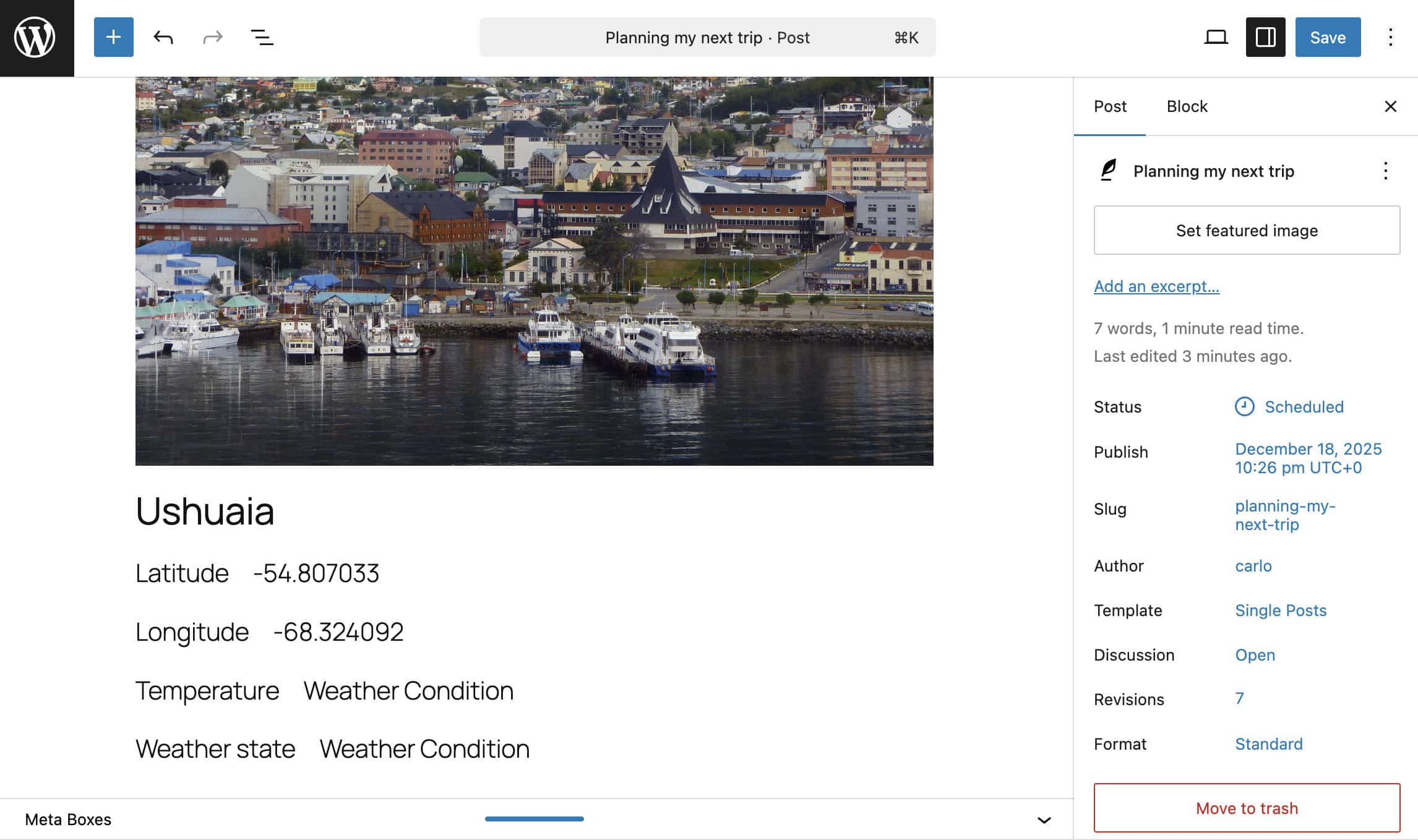*具有自定义数据源的块绑定示例* 很明显,手动将JSON对象添加到块标记中并不是一个用户友好的过程。幸运的是,[WordPress 6.9](https://kinsta.com/blog/wordpress-6-9/)对块绑定API进行了重大改进,使为自定义数据源创建UI成为可能。让我们尝试使用自定义UI改进我们的插件。 ## 如何为您的自定义块绑定源创建UI 要为您的自定义绑定源创建UI,您需要编写一些JavaScript代码。首先,在`/includes`下创建一个`js`子文件夹,然后在其中创建一个**block-bindings-ui.js**文件。插件结构现在如下: “` /wp-content/plugins/ └── /block-bindings-example/ ├── block-bindings-example.php └── /includes/ ├── binding-sources.php ├── meta-fields.php └── weather-api.php └── /js/ └── block-bindings-ui.js “` 首先,将 JS 脚本添加到插件的主文件中: “` function bb_enqueue_weather_bindings_ui() { if ( ! function_exists( ‘register_block_bindings_source’ ) ) { return; } $js_file_path = plugin_dir_path( __FILE__ ) . ‘includes/js/block-bindings-ui.js’; if ( ! file_exists( $js_file_path ) ) { return; } // 仅在编辑器中加载脚本 wp_enqueue_script( ‘bb-weather-bindings-ui’, plugin_dir_url( __FILE__ ) . ‘includes/js/block-bindings-ui.js’, [ ‘wp-blocks’, ‘wp-element’, ‘wp-dom-ready’, ‘wp-block-bindings’ ], filemtime( $js_file_path ), true ); } add_action( ‘enqueue_block_editor_assets’, ‘bb_enqueue_weather_bindings_ui’ ); “` 以下是该函数的作用: – 首先,它检查 `register_block_bindings_source()` 函数是否存在。 – 然后,它检查 `block-bindings-ui.js` 文件是否存在于插件的 `/includes/js` 文件夹中。 – `wp_enqueue_script()` 函数在编辑器中加载脚本以供使用。关于函数的详细说明,请参阅[文档](https://developer.wordpress.org/reference/functions/wp_enqueue_script/)。 – 它使用 [`enqueue_block_editor_assets` 钩子](https://developer.wordpress.org/reference/hooks/enqueue_block_editor_assets/) 将脚本加入编辑界面的队列中。 现在打开 `block-bindings-ui.js` 文件并编写以下代码: “` wp.blocks.registerBlockBindingsSource({ name: ‘bb/weather-condition’, label: ‘Weather Condition’, useContext: [ ‘postId’, ‘postType’ ], getValues: ( { bindings } ) => { if ( bindings.content?.args?.key === ‘temperature’ ) { return { content: ‘Current temperature provided by Open-Meteo.’, }; } if ( bindings.content?.args?.key === ‘weather_state’ ) { return { content: ‘Current conditions.’, }; } return { content: bindings.content, }; }, getFieldsList() { return [ { label: ‘Temperature (°C)’, type: ‘string’, args: { key: ‘temperature’ } }, { label: ‘Weather Conditions’, type: ‘string’, args: { key: ‘weather_state’ } } ]; } }); “` – `registerBlockBindingsSource()` 函数在块编辑器中注册一个绑定源。 – `name` 是绑定源的唯一标识符。它必须与 PHP 中使用 `register_block_bindings_source()` 时设置的名称完全匹配。 – `label` 是在**属性**面板的**源**下拉菜单中显示的人类可读名称。 – `useContext` 设置此绑定源需要从块中获取的上下文值。需要 `postId` 以便绑定源知道要读取哪个文章的元数据/天气数据。 – `getValues` 在块编辑器中提供绑定值的预览。它返回用户选择绑定源后(下拉菜单中显示的选项,以我们的示例中的 “Weather Condition” 为例)显示的选项。此方法从 WordPress 6.9 开始可用。 – `getFieldsList` 返回用户选择绑定源后(下拉菜单中显示的选项,以我们的示例中的 “Weather Conditions” 为例)显示的选项。 保存文件并返回编辑器。你的**天气状况**源现在可以在编辑器 UI 中使用了,与**文章元数据**一起显示。重新加载页面,然后将一个段落或标题块连接到你的绑定源。下图显示了结果。 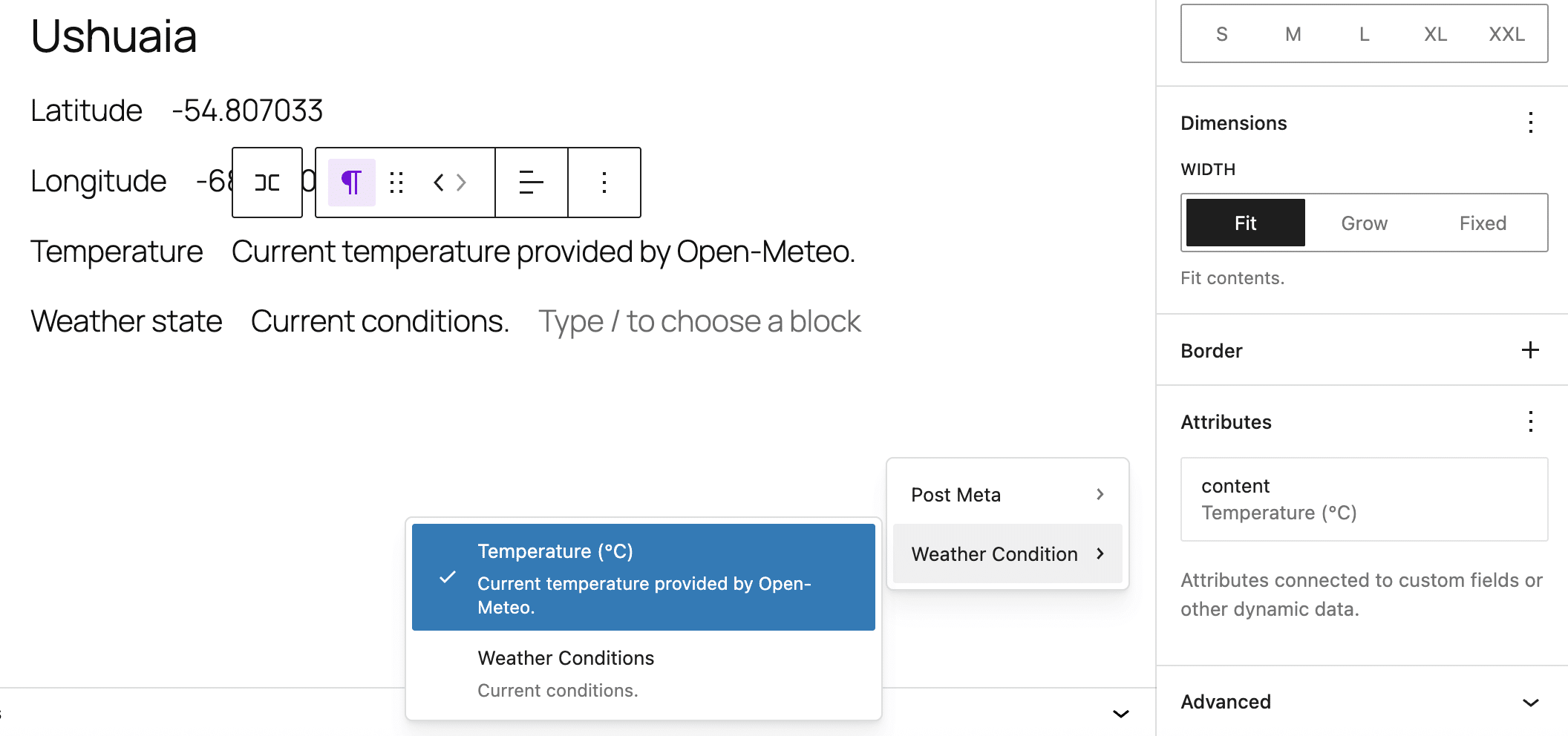*Custom Block Binding source UI* 最终图片显示了在网站前端的最终结果。 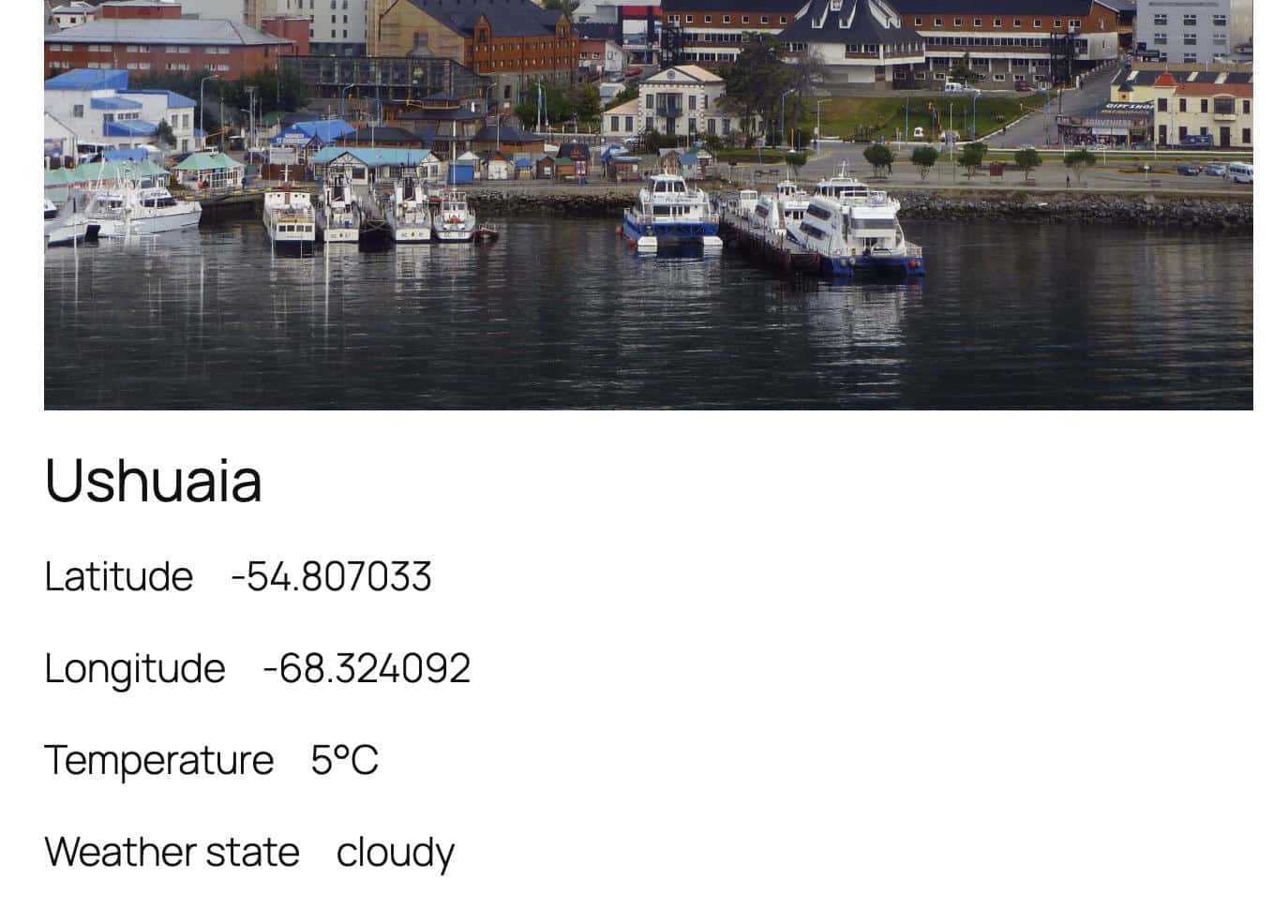*A post that shows data from an external binding source* ## 块绑定 API 还能做什么? 这篇文章只是简要介绍了 Block Bindings API 的功能。最棒的是,这个强大的 WordPress 功能的开发还远未结束,我们期待在未来看到新的实现和补充。 将 Block Bindings API 与其他强大的 WordPress API(如 [Interactivity API](https://kinsta.com/blog/wordpress-interactivity-api/))集成,让您能够构建动态的、交互式的应用程序,这些应用程序远远超越了 WordPress 早期使其流行的传统博客功能。 WordPress 不再仅仅是一个博客平台或网站构建器。它现在正成为一个适用于各类 Web 应用程序的多用途开发平台。 您的应用程序越强大,托管服务就越重要。Kinsta 提供优质托管托管服务,具有高性能、强大的安全性、广泛的自动化,以及被 [G2 用户](https://kinsta.com/blog/g2-awards/) 认可为行业领先的一流支持。 最强大的 Web 应用程序需要最佳的托管基础设施。查看 [Kinsta 计划](https://kinsta.com/pricing/),找到最适合您网站需求的方案。